

How to Set Up Targeting Rules
Targeting rules let you control which users see which variation of a feature flag. Instead of toggling a flag on for everyone, you can roll out features to specific users based on attributes like email, plan, country, or any custom property.
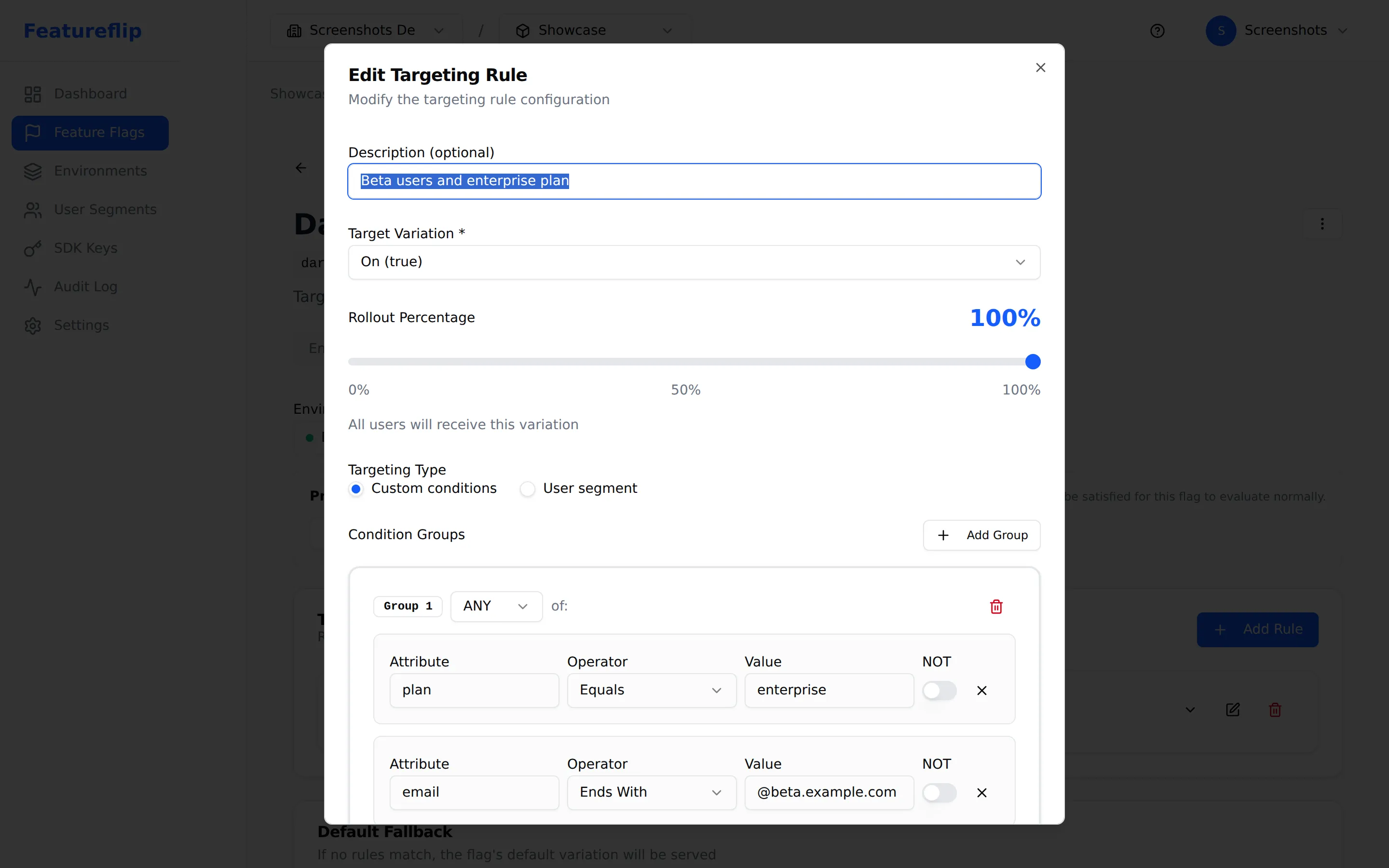
Where to find targeting
Section titled “Where to find targeting”- Open a flag from the Flags page at
/flags. - On the flag detail page, select an environment tab (e.g., Development, Staging, Production).
- The targeting configuration panel appears below the toggle.
Targeting rules only apply when the flag is on. When the flag is off, all users receive the off variation.
Creating a rule
Section titled “Creating a rule”- Click Add Rule in the targeting panel.
- Choose an attribute from the evaluation context (e.g.,
email,plan,country,user_id, or any custom attribute your application sends). - Choose an operator:
equals/not equals— Exact match.contains/not contains— Substring match.starts with/ends with— Prefix or suffix match.in list/not in list— Match against multiple values.
- Enter the values to match against.
- Select the variation to serve when this rule matches.
- Click Save to apply the rule.
Rule evaluation order
Section titled “Rule evaluation order”Rules are evaluated top-to-bottom. The first rule that matches a user’s context determines the variation they receive. No further rules are checked after a match.
- Drag rules to reorder them in the targeting panel.
- Place more specific rules above general ones. For example, put a rule targeting a single user above a rule targeting all Pro plan users.
Fallthrough variation
Section titled “Fallthrough variation”When a flag is on and no targeting rules match a user, the fallthrough variation is served. Configure the fallthrough variation in the environment configuration section below the rules list.
Make sure the fallthrough variation is set to a sensible default for users who do not match any rule.
Percentage rollouts
Section titled “Percentage rollouts”Instead of serving a single variation, you can configure a rule or the fallthrough to use a percentage rollout. This distributes users across variations by percentage (e.g., 80% false, 20% true) for gradual feature launches.
Testing evaluation
Section titled “Testing evaluation”Use the Evaluate feature on a flag to test what a specific user would receive:
- Click the Evaluate button on the flag detail page.
- Enter a JSON evaluation context (e.g.,
{"user_id": "123", "plan": "pro", "country": "US"}). - See which variation would be served and which rule matched.
This is useful for verifying your targeting configuration before deploying changes.
Example
Section titled “Example”Goal: Give Pro plan users early access to a new feature.
- Open the flag and select the Production environment.
- Turn the flag on.
- Click Add Rule.
- Set attribute to
plan, operator toequals, value topro. - Select the
truevariation. - Set the fallthrough variation to
false. - Save. Pro users now see the feature; everyone else does not.
Next steps
Section titled “Next steps”- Targeting & Segments — understand evaluation context, rule ordering, and segments
- Rollout Strategies — gradual percentage-based rollouts
- How to Use Segments — create reusable user groups for targeting
- How to Create Feature Flags — create and configure flags before adding rules