

Single Sign-On (SSO) with Your Identity Provider
Single sign-on lets your team open Featureflip through the identity provider (IdP) your company already runs, such as Okta or Microsoft Entra ID. People sign in with their work account, and your IdP decides who gets in. Featureflip connects over OpenID Connect (OIDC), so any provider that publishes an OIDC discovery document will work.
SSO is on the Business plan and above. On other plans, the Single sign-on card shows “Single sign-on is available on the Business plan and above.” instead of the settings.
Setup guides for specific providers:
Both guides include a Terraform configuration for the IdP side, and the Entra guide has Azure CLI commands too, if you’d rather not click through an admin console.
Everything below applies whichever provider you use.
Before you start
Section titled “Before you start”You need:
- An organization on the Business or Enterprise plan.
- The Owner role in that organization. Admins can view the connection, run the test and manage domains, but only Owners can save the connection, activate it or require SSO.
- Admin access to your IdP, so you can register a new application there.
- Access to DNS for the email domain your team signs in with.
Everything lives in Organization Settings, in the Single sign-on card at the bottom of the page. The card is visible to Admins and Owners.
How setup works
Section titled “How setup works”- Verify your email domain. Publish a DNS TXT record so Featureflip knows the domain is yours.
- Register Featureflip in your IdP. Create an OIDC web application and paste in Featureflip’s redirect URI.
- Save the connection. Enter the issuer URL, client ID and client secret from your IdP.
- Test the connection. Sign in through your IdP once to prove the round trip works.
- Activate it. Your team can now use Continue with SSO on the sign-in page.
- Require SSO (optional). Members must then come through your IdP to open the organization.
The redirect URI to register in your IdP is the same for every organization:
https://api.featureflip.io/api/management/v1/sso/oidc/callbackThe card also shows it under Redirect URI (paste into your IdP) with a Copy button.
Verify your email domains
Section titled “Verify your email domains”A connection only admits people whose email address is on a domain your organization has verified. That rule applies on every sign-in, including people who have signed in before. It covers the email on their Featureflip account too: if someone changes their account email to an address off your verified domains, SSO stops signing them in until it’s back on one. When you remove a domain, any account created on it that has no password moves to the address your IdP sends at that member’s next SSO sign-in. The IdP has to confirm that address, and no other Featureflip account can already hold it. If another organization has verified the old domain by then, the account stays where it is and SSO refuses the sign-in.
- In the Domains section, type your domain (for example
example.com) into Add a domain and click Add domain. - Featureflip shows a TXT name and a TXT value. Create that record at your DNS provider. The name looks like
_featureflip-verification.example.comand the value likefeatureflip-verification=followed by 32 characters. - Click Verify. The badge changes from Pending to Verified once the record is visible.
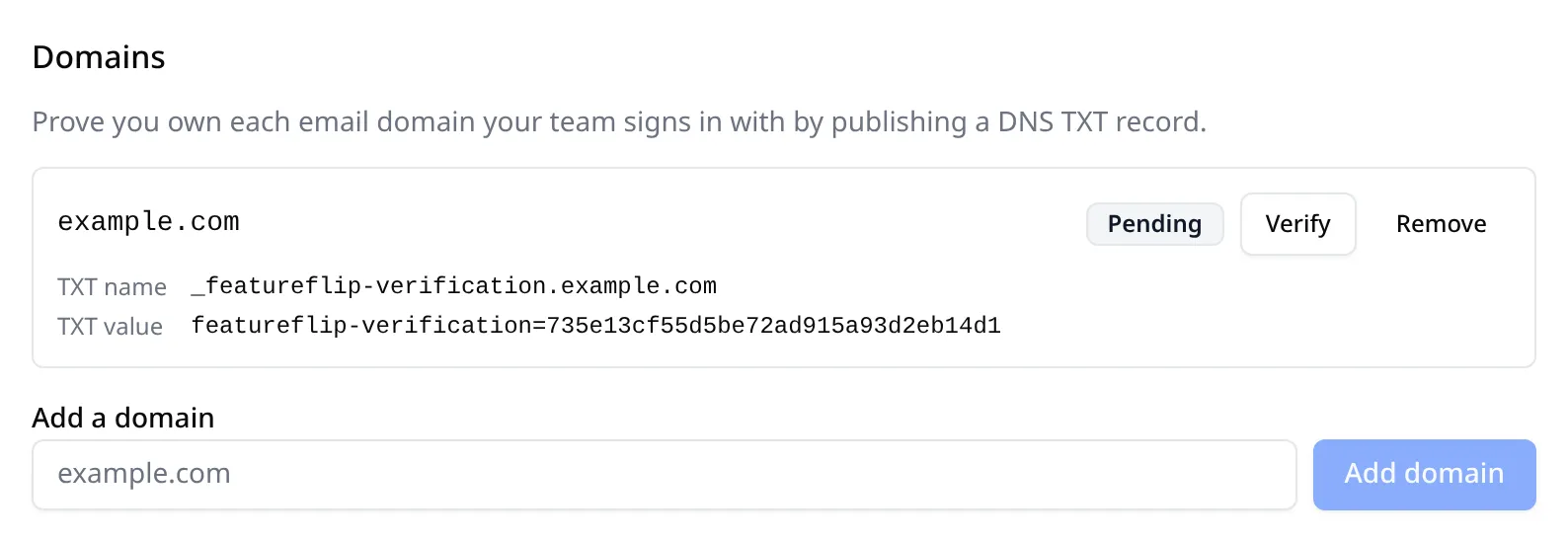
In a zone file, the record looks like this (use the value from your own card):
_featureflip-verification.example.com. 300 IN TXT "featureflip-verification=735e13cf55d5be72ad915a93d2eb14d1"Before you click Verify, you can check that the record is live from any terminal. An empty result means it hasn’t propagated yet.
dig +short TXT _featureflip-verification.example.com# On Windows: nslookup -type=TXT _featureflip-verification.example.comDNS changes can take a few minutes to appear, so if Verify reports that no record was found, wait and try again. You can list up to 20 domains, and a domain can be verified by one organization at a time.
Leave the record in place. Featureflip re-checks every verified domain once a day. If the record disappears, the domain is marked Record missing and every Owner gets an email, but sign-in keeps working while you fix it. Put the record back and click Verify to clear the badge right away. Otherwise the next daily check clears it.
Owners get a reminder a week before the 30-day mark, and if the record is still missing when that day arrives, the domain is released. From then on, single sign-on stops covering addresses on it and any other organization can verify it. If it was your last verified domain, Require single sign-on switches off as well, so members can still sign in with a password or social login. Want it back? Restore the record and click Verify.
Save and test the connection
Section titled “Save and test the connection”After you have registered the app in your IdP (see the Okta or Entra ID guide), fill in the Identity provider section:
| Field | What to enter |
|---|---|
| Display name | Any label, for example “Acme Okta”. |
| Issuer URL | Your IdP’s OIDC issuer. It must be an https URL and must match what your IdP reports about itself exactly. |
| Client ID | The client ID of the app you registered. |
| Client secret | The secret for that app. Featureflip stores it encrypted and never shows it again. When you edit the connection later, leave the field blank to keep the current secret. |
| Secret expires on | Optional. If you enter the date your IdP gave the secret, Owners get an email 30 days and 7 days before it expires. |
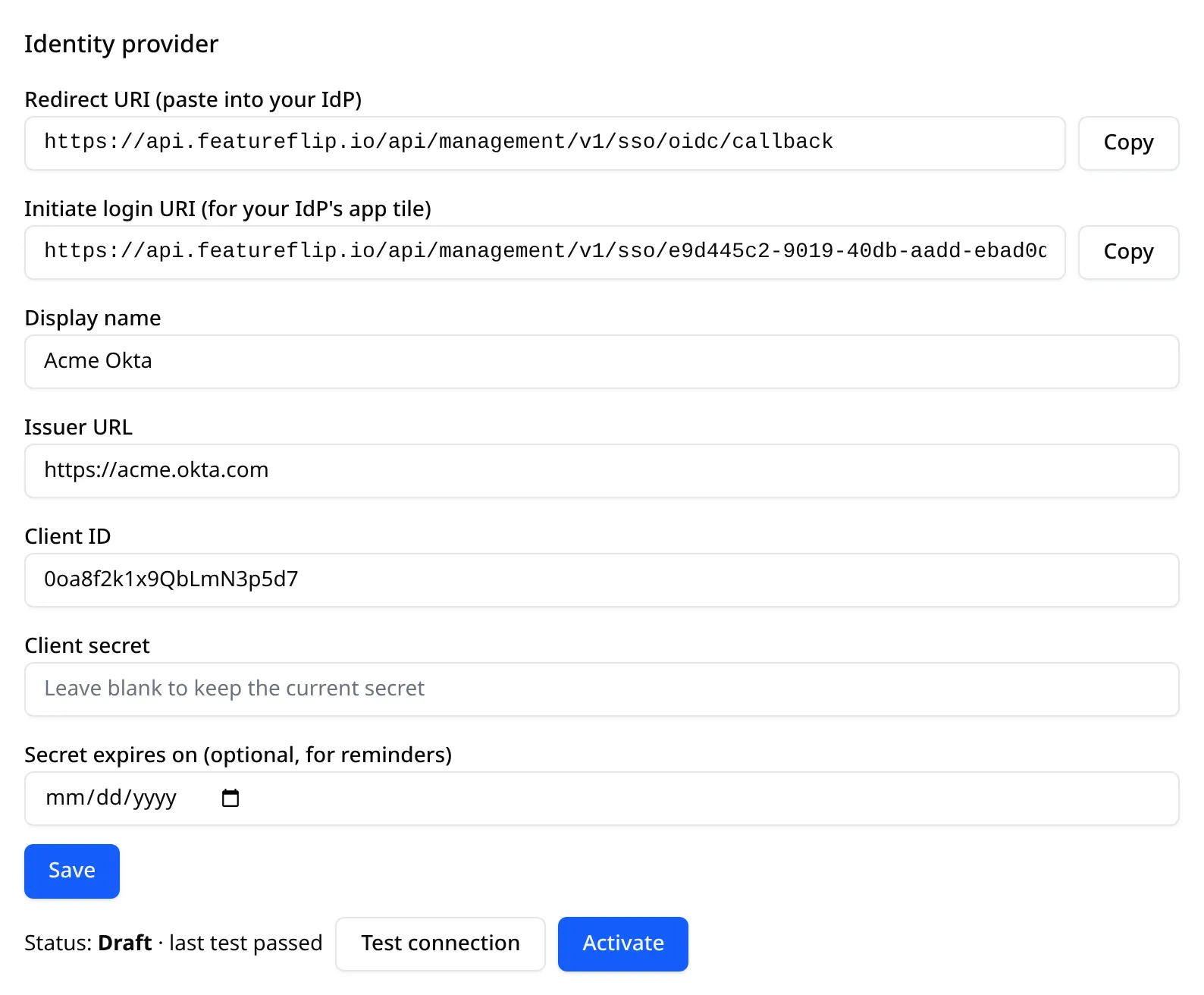
Click Save. Featureflip loads your issuer’s discovery document straight away, so a wrong issuer is caught here rather than at sign-in. If the provider identifies itself with a slightly different issuer (a trailing slash, say), the error message quotes the exact value to use.
You can read that value yourself before saving. Every OIDC provider publishes a discovery document at /.well-known/openid-configuration under its issuer, and the issuer field in it is exactly what Featureflip compares against:
curl -s https://acme.okta.com/.well-known/openid-configuration | jq -r .issuer# https://acme.okta.comIf that command fails, Featureflip can’t reach the document either. The same response lists scopes_supported and claims_supported, which should include openid, email and profile.
Once saved, the card also shows an Initiate login URI (for your IdP’s app tile). Add it to your IdP if you want people to launch Featureflip from their app dashboard.
Then click Test connection. Your IdP asks you to sign in and hands you back to Organization Settings with the result. The test doesn’t create an account or a session. Your own email needs to be on a verified domain for it to pass, so verify the domain first. Your IdP also has to confirm that email, as described under Other OIDC providers. A test link is good for 10 minutes.
Activate the connection
Section titled “Activate the connection”Click Activate. An Owner can activate once a test has passed since the issuer, client ID or secret last changed.
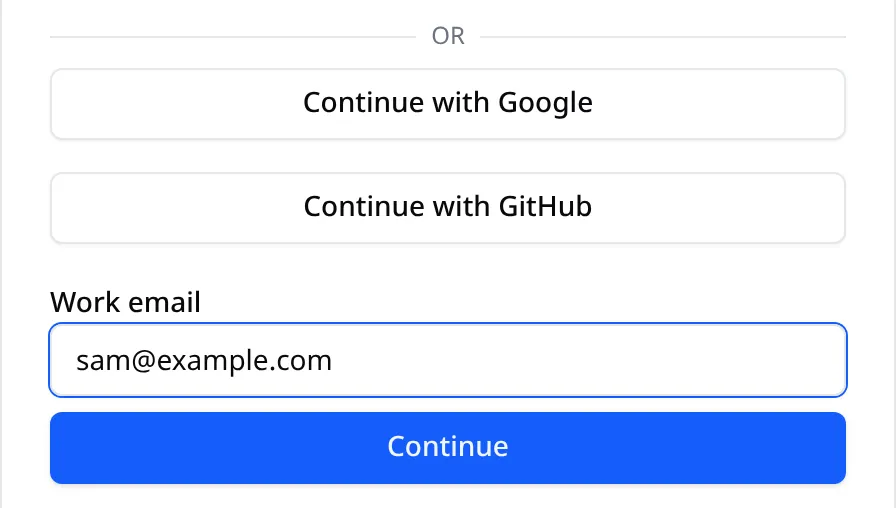
From then on, anyone on a verified domain can click Continue with SSO on the sign-in page, enter their Work email, and continue to your IdP.
Editing the issuer or client ID later puts the connection back into Draft, turns SSO enforcement off and signs out everyone who came in through SSO. Test and activate again afterwards. The edit also disconnects everyone’s account from the old IdP, so you can move to a new IdP or app registration without locking anyone out: each person’s next SSO sign-in connects their existing account to the new one, as long as the new IdP confirms their email address. Changing only the secret keeps the connection active, enforcement on and everyone signed in, though you should run the test again to confirm the new secret works. Renaming the connection or changing the expiry date doesn’t do any of that. Deactivate has the same effect as those edits: it stops SSO sign-in, turns enforcement off and ends SSO sessions. Personal access tokens created in those sessions keep working, but they no longer count as SSO sign-in. Once SSO is required again, they’re refused with sso_required and need replacing.
Choose who can join
Section titled “Choose who can join”The Access policy section controls what happens when someone signs in through your IdP for the first time.
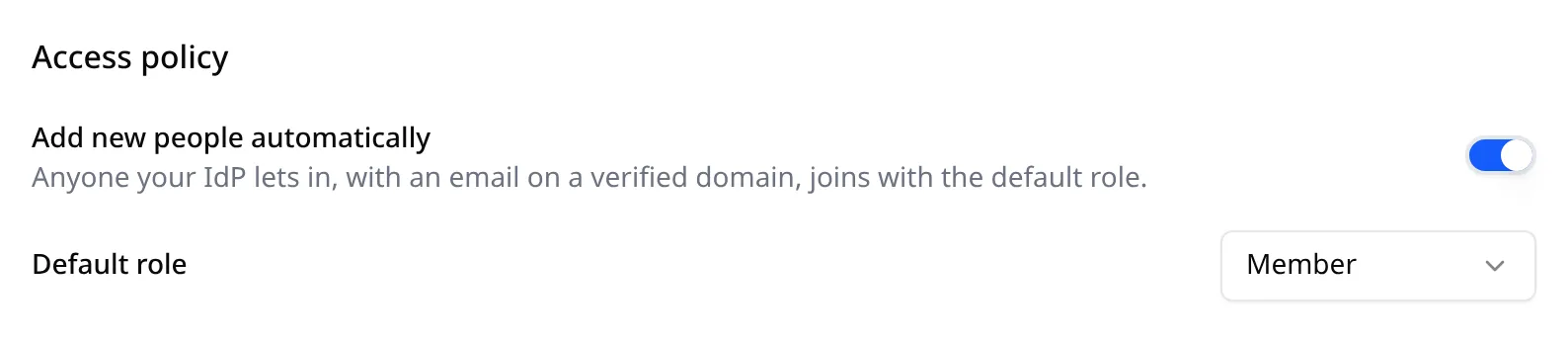
Add new people automatically is on by default. Anyone your IdP lets in, with an email on a verified domain, joins your organization with the Default role you pick: Viewer, Member or Admin. Owner can never be the default. People who join this way have no Featureflip password and show an SSO badge in the member list.
Any of them can add a password later. On the sign-in page they click Forgot password? and enter their work email, and Featureflip emails them a Set a password link that lets them choose one. With a password they can still get into Featureflip if your IdP is down, or if your organization moves off the Business plan. It doesn’t get them past Require single sign-on, though. While that’s on, they still come through your IdP to open your organization.
If they haven’t verified their email address yet, setting a password also disconnects their account from your IdP. Whoever redeems the link has proved they own the mailbox, and an unconfirmed SSO sign-in hasn’t. Once they verify the address, their next SSO sign-in connects it again.
With it off, only people you have invited can join. Their invite is accepted when they first sign in, and the role on the invite applies. That only happens when your IdP confirms their email address, as described under Other OIDC providers.
A few rules hold either way:
- Each person uses a seat. If your plan’s member limit is reached, the sign-in is refused until you free a seat or upgrade.
- Someone you removed from the organization is never added back automatically. They need a new invite.
- If someone already has a Featureflip account with the same email, their first SSO sign-in links to it, as long as your IdP confirms the address and the Featureflip account’s email is verified.
To decide who can reach Featureflip at all, use your IdP’s assignments. The provider guides show where.
Require SSO
Section titled “Require SSO”Turn on Require single sign-on to make your IdP the only way into the organization. The switch is available once the connection is active, and only Owners can change it.
With SSO required:
- Members who sign in with a password or with Google or GitHub can’t open the organization. They are asked to use SSO. Their other organizations are unaffected.
- Owners keep a recovery path. An Owner can still sign in with their Featureflip password, or with Google or GitHub if that’s how they signed up, so a misconfigured IdP can never lock everyone out. Each of those sign-ins is recorded in the audit log. The Owner role is never handed out through SSO, so whoever holds it already had a way in before you connected your IdP.
- A verified domain can’t be removed until enforcement is off again. Deactivate also turns it off, and it’s the only way to do that after a downgrade or while the organization is deactivated, because the switch isn’t shown then.
Enforce multi-factor authentication in your IdP. Featureflip asks for its own two-factor code only from people who turned it on for their account, and they enter it after your IdP lets them in.
Sessions, offboarding and API tokens
Section titled “Sessions, offboarding and API tokens”An SSO session lasts up to 24 hours. Then Featureflip quietly routes the person back through your IdP. They usually don’t notice, and they land on the page they were on. Each renewal also checks that your connection is still active. If it has been deactivated or deleted, or your organization has moved below Business, the person is signed out and sees the normal sign-in page instead.
Removing a user at your IdP ends their sessions within 24 hours. Also remove them from the organization in Featureflip to cut off their API tokens.
Personal access tokens outlive a browser session. While SSO is required, only tokens created during an SSO session for your organization are accepted. A token that isn’t gets a 403 with the sso_required error. Removing the member in Team Management revokes their access at once, tokens included.
If your organization moves below Business
Section titled “If your organization moves below Business”SSO follows the plan. On Free, Team or Pro:
- Continue with SSO stops working for your organization, and people see “Single sign-on isn’t active for this organization.”
- Require single sign-on stops being enforced, so members can open the organization with a password, Google or GitHub again. Anyone who only ever signed in through SSO should set a password with Forgot password? first, as described in Choose who can join.
- Your connection, verified domains and access policy are kept as they are. Back on Business or Enterprise, SSO works again without setting it up from scratch.
An Owner can still Deactivate the connection after a downgrade. If SSO was required, deactivating is also what lets you remove a verified domain. Activating it again needs the Business plan or above. Plans and Limits covers what else changes when you switch plans.
If your organization is deactivated
Section titled “If your organization is deactivated”Members who already belong to the organization can still sign in with SSO. They land on the same deactivated notice a password sign-in shows, and an Owner can reactivate from there. Nobody new can join through SSO while the organization is deactivated. A sign-in that would add a member stops with “This organization is deactivated, so it can’t add new members.”
The notice also lets an Owner Deactivate or Delete the connection, and lets an Owner or Admin remove domains, without reactivating first. If SSO was required, an Owner has to deactivate the connection before a verified domain can go.
Other OIDC providers
Section titled “Other OIDC providers”Beyond Okta and Entra ID, the same steps work for any provider with a standard OIDC discovery document. Register a confidential web application with the authorization code grant, allow the openid, email and profile scopes, and use the issuer your provider publishes.
Two things are checked for every provider:
- The ID token must carry an
emailclaim. Anemail_verifiedclaim set tofalseis refused. - The issuer must belong to your tenant. Shared multi-tenant endpoints, such as Entra ID’s
/commonor/organizations, are refused. With Google Workspace as the provider, the account’s Workspace domain must be one you have verified.
Featureflip also needs the IdP to confirm the address by sending email_verified set to true. Entra ID never sends that claim. It uses xms_edov, which the Entra ID guide adds in step 4. A sign-in the IdP hasn’t confirmed can’t link to an existing account or accept an invite, so Test connection fails until the claim arrives.
If your IdP still leaves it off for someone, Add new people automatically lets them in at the Default role. Featureflip then emails them a link, and they can’t use their account until they click it and verify the address.
Troubleshooting
Section titled “Troubleshooting”These are the messages you are most likely to see, and what to check.
| Message | What to check |
|---|---|
| ”The provider identifies itself as ”…”. Use that exact value as the issuer.” | Copy the quoted value into Issuer URL as-is. |
| ”Couldn’t load … Check the issuer URL.” | The issuer is wrong, or its /.well-known/openid-configuration document isn’t reachable from the internet. |
| ”Your identity provider rejected the test sign-in. Check the client ID and secret.” | The client ID or secret doesn’t match the app, or the secret has expired. |
| ”The test sign-in worked, but that account’s email isn’t on a verified domain.” | Verify the domain of the account you tested with. |
| ”The test expired or was opened in another browser. Run it again.” | Start the test again and finish it within 10 minutes in the same browser. |
| ”Single sign-on isn’t set up for that email domain.” | Shown on the sign-in page. The domain isn’t verified by any organization with an active connection. |
| ”This organization has no free seats.” | Free a seat in Team Management or move to a larger plan. |
| ”You were removed from this organization. Ask an admin to invite you again.” | Send that person a new invite. |
| ”The test sign-in worked, but your identity provider didn’t confirm that account’s email. …” | Your IdP isn’t sending email_verified: true, or xms_edov on Entra ID. See Other OIDC providers. |
| ”Your Featureflip account’s email is no longer on this organization’s domain, …” | The person changed their account email to an address off your verified domains. They can sign in with a password and change it back, or you can verify the new domain. A member with no password gets back in when your IdP sends a confirmed address, on a verified domain, that no other Featureflip account uses. SSO can’t move the account once another organization has verified their old domain. |
| ”Verify the email address on your existing Featureflip account, then try single sign-on again.” | The person has an older Featureflip account with an unverified email. Verifying it lets SSO link to it. |
| ”Your identity provider didn’t confirm your email address, so we can’t use it to sign in to an existing account or accept an invitation.” | Your IdP isn’t sending email_verified: true, or xms_edov on Entra ID. See Other OIDC providers. |