

How to Manage Environments
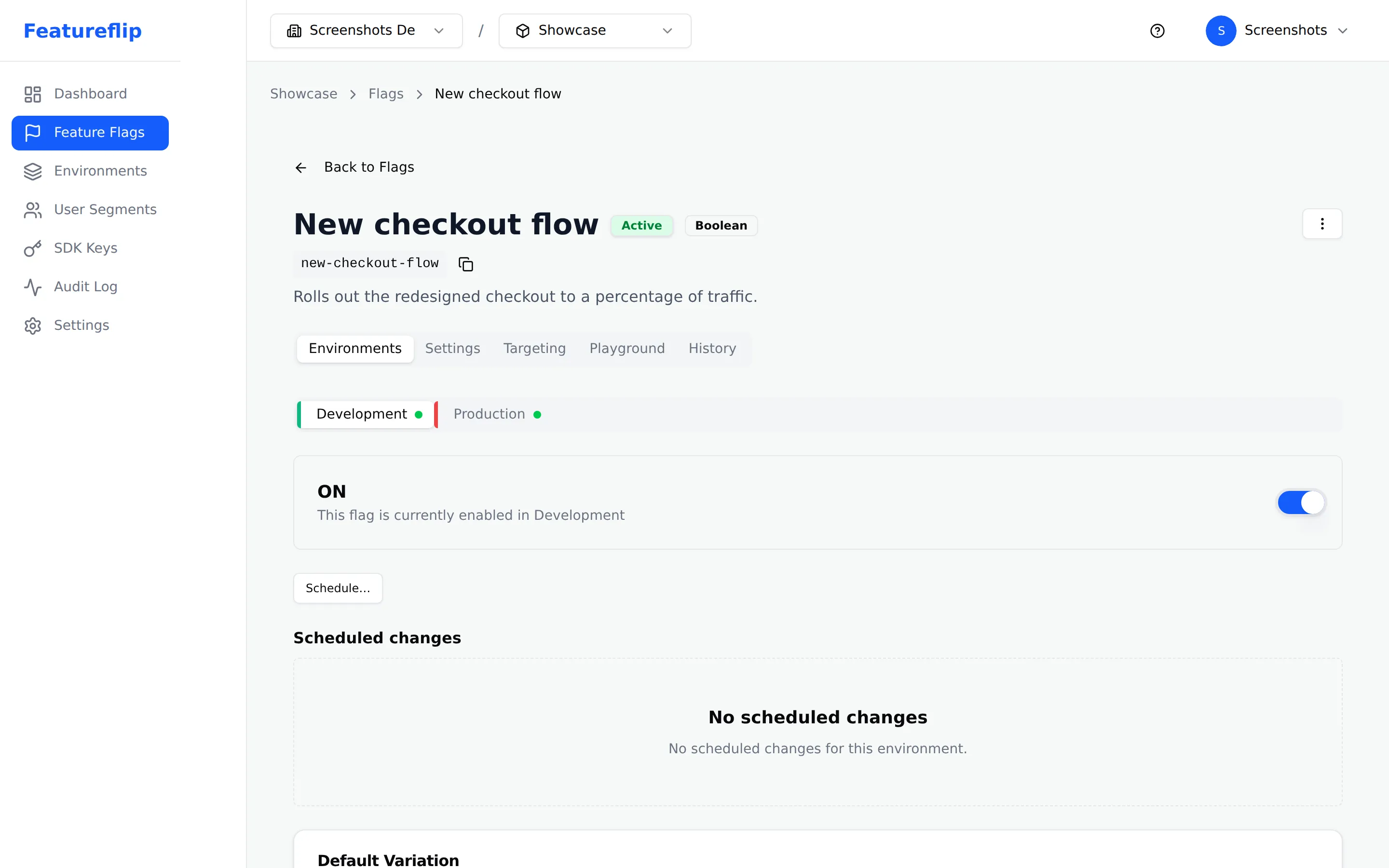
Environments let you maintain separate feature flag configurations for each stage of your development workflow. A flag can be enabled in Development, disabled in Staging, and gradually rolled out in Production — all independently.
Default environments
Section titled “Default environments”Every new project starts with three environments:
- Development — For local development and testing.
- Staging — For pre-production validation.
- Production — For live user traffic.
These defaults cover the most common workflow. You can create additional environments as needed.
Creating an environment
Section titled “Creating an environment”- Navigate to the Environments page at
/environments. - Click Create Environment.
- Enter a name (e.g., “QA” or “Canary”) and a key (used to identify the environment in API calls).
- Click Create.
The new environment immediately gets configurations for all existing flags. All flags start disabled in the new environment, so there is no risk of accidental exposure.
SDK keys
Section titled “SDK keys”Each environment has its own SDK keys that your application uses to connect to the Featureflip Evaluation API.
- Go to the SDK Keys page at
/sdk-keys. - Select the environment you need a key for.
- Click Create Key to generate a new SDK key.
- Copy the key and add it to your application’s configuration.
You can create multiple keys per environment (e.g., for different services or deployments). Revoke a key if it is compromised or no longer needed — revoked keys stop working immediately.
Environment-specific configuration
Section titled “Environment-specific configuration”Each flag has independent settings per environment:
- On/off state — A flag can be on in Development and off in Production.
- Targeting rules — Different rules for different environments. Test aggressive targeting in Staging before applying it to Production.
- Fallthrough variation — The default variation served when no rules match can differ per environment.
Changes in one environment never affect other environments. This isolation lets you test freely in Development without risking Production.
Deleting environments
Section titled “Deleting environments”Deleting an environment permanently removes:
- All flag configurations for that environment.
- All SDK keys associated with the environment.
This action cannot be undone. Make sure no applications are still using SDK keys from the environment before deleting it.
- Navigate to the Environments page.
- Click the environment you want to remove.
- Click Delete and confirm the action.
Next steps
Section titled “Next steps”- Environments — understand how environments work and best practices
- How to Create Feature Flags — create flags that are configured per environment
- SDK Overview — learn how SDK keys connect your app to an environment
- How to Set Up Targeting Rules — configure environment-specific targeting