Product feature
Single sign-on with your identity provider
Your team opens Featureflip with the work account Okta, Microsoft Entra ID or your own OIDC provider already manages. Join and leave in one place.
Last updated:
Single sign-on lets your team sign in to Featureflip through the identity provider (IdP) your company already runs. Featureflip connects over OpenID Connect, so Okta, Microsoft Entra ID and any provider with an OIDC discovery document work. Setup takes four moves: verify your email domain with a DNS record, register Featureflip in your IdP, test the round trip, activate. After that your IdP decides who gets in. New people can join automatically with a default role, and Require single sign-on makes the IdP the only way into your organization. SSO is included on the Business plan and above.
How single sign-on works in Featureflip
Access to your flags follows the directory your company keeps anyway, from someone's first day to the afternoon they hand back their laptop.
The identity provider you already run
Featureflip connects over OpenID Connect, so Okta, Microsoft Entra ID, Google Workspace and any provider that publishes an OIDC discovery document will work. Okta and Entra ID each get a step-by-step guide with a Terraform configuration for the IdP side, if clicking through an admin console isn't how your team works.
Your domain, proven with DNS
A connection only admits people whose email address sits on a domain you've verified with a TXT record. Featureflip re-checks every verified domain once a day and emails your Owners if the record disappears.
Tested before anyone depends on it
Test connection sends you through your IdP once and reports back, without creating an account or a session. Activate stays locked until a test passes, and changing the issuer, client ID or secret later puts the connection back in draft until it passes again.
New people arrive with a role
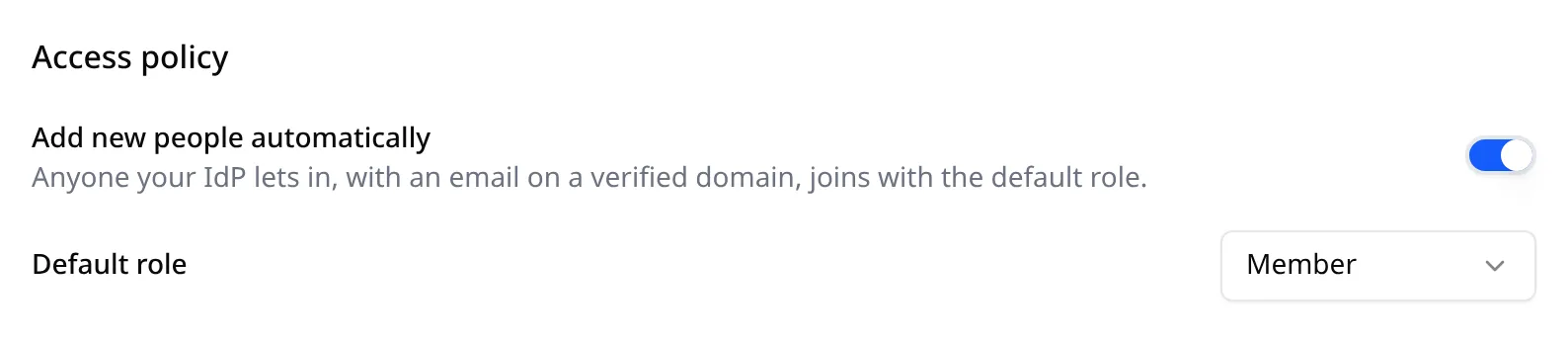
Switch on Add new people automatically and anyone your IdP lets in joins with the default role you pick: Viewer, Member or Admin. Leave it off and only invited people get in. Someone you removed never rejoins by themselves.
One way in
Turn on Require single sign-on and a member who tries a password, Google or GitHub is sent to SSO instead. Owners keep a password sign-in for recovery, so a misconfigured IdP can never lock everyone out, and every one of those sign-ins is written to the audit log.
Offboarding that follows your directory
SSO sessions route back through your IdP on a regular cycle, so removing someone there removes their Featureflip access as well. While SSO is required, the API only accepts personal tokens created during an SSO session, which keeps an old token from outliving the person who made it.
Provider walkthroughs cover Okta and Microsoft Entra ID, and the single sign-on guide has the rules every provider shares, plus a troubleshooting table for each error message.
Setting up SSO, step by step
An Owner does this once, from the Single sign-on card at the bottom of Organization Settings. Admins can view the connection, run the test and manage domains along the way.
-
1
Verify your email domain
Add your domain in the Single sign-on card under Organization Settings. Featureflip gives you a TXT record to publish, and the badge flips from Pending to Verified once DNS picks it up.
-
2
Register Featureflip in your IdP
Create an OIDC web application in Okta, Entra ID or your own provider and paste in the redirect URI the card shows. Copy the issuer URL, client ID and client secret back into Featureflip and save.
-
3
Run the test
Click Test connection and sign in through your IdP once. A wrong issuer or a mistyped secret shows up here with a message that names the fix, long before a teammate hits it.
-
4
Activate, then decide how strict to be
Activate the connection and Continue with SSO works on the sign-in page for everyone on your domain. Pick a default role for new people, and switch on Require single sign-on once you want the IdP to be the only door.
Google and GitHub sign-in, and where SSO takes over
Every Featureflip plan, Free included, lets people sign in with a Google or GitHub account. It spares them one more password. It also leaves the choice of account with each person, and nothing about a personal GitHub login tells Featureflip whether its owner still works for you.
SSO starts at the other end, with the directory your IT team already keeps. Your IdP enforces your password and multi-factor policy, and when someone leaves, you remove them in one place and every connected tool follows. On the sign-in page the two sit together: Continue with SSO appears under the Google and GitHub buttons. Once you switch on Require single sign-on, members can still see those buttons, but only SSO opens your organization.
OIDC single sign-on comes with Business and Enterprise, and Enterprise adds SAML and SCIM for teams whose procurement checklist names them. The rest of the account protections, including two-factor authentication and the audit log, are on every plan and described on the security page. SSO launched alongside the new plans, and the announcement post covers both.
Frequently asked questions
- What is single sign-on in Featureflip?
- Single sign-on lets your team open Featureflip with the work account your identity provider already manages. Featureflip connects to Okta, Microsoft Entra ID or any OpenID Connect provider, and your IdP decides who gets in. You verify your email domain with a DNS record, register Featureflip as an app in your IdP, test the round trip, and activate it. New people can join automatically with a default role, and you can require SSO so members can't open the organization any other way. SSO is on the Business plan and above.
- Is signing in with Google or GitHub the same as SSO?
- No. Google and GitHub sign-in are on every Featureflip plan, including Free, and they save people a password, but each person chooses which account to use and nothing ties that account to your company. SSO starts from your identity provider instead. It holds the list of who works for you, applies your multi-factor and password policy, and lets you remove someone from every connected tool in one place. With Require single sign-on switched on, Google, GitHub and password sign-ins no longer open your organization for members.
- Which plan includes SSO?
- Single sign-on through your own OIDC identity provider comes with the Business plan, from $199/month billed annually, and with Enterprise. Enterprise also covers SAML and SCIM for teams whose procurement asks for them. Every plan, Free included, has Google and GitHub sign-in and two-factor authentication.
- What happens if our identity provider goes down while SSO is required?
- Members wait for the IdP to come back, but Owners can still sign in with their Featureflip password, so someone can always reach the organization and turn enforcement off if they need to. Each of those Owner sign-ins is recorded in the audit log. Your applications are unaffected either way: SDKs authenticate with SDK keys and keep evaluating flags whatever state the sign-in page is in.
- Do people added through SSO get a Featureflip password?
- They start without one and show an SSO badge in the member list. If someone later needs a password, Forgot password on the sign-in page lets them set one. While Require single sign-on is on, that password still won't open your organization unless they're an Owner, so the IdP stays the way in.
- Does everyone who signs in through SSO use a seat?
- Yes. Each person counts toward your plan's member limit the same way an invited member does. If the organization is full, a new SSO sign-in is refused with a message saying so, and it goes through once you free a seat or move to a larger plan.
Put Featureflip behind your own IdP
Single sign-on is part of the Business plan, from $199/month billed annually for up to 25 people, and nothing is metered: no per-seat fees, no monthly active users, no evaluation caps.
Related
Single sign-on (guide)
Domains, the access policy, requiring SSO, sessions and every error message you might meet.
SSO with Okta (guide)
Register Featureflip in Okta by hand or with Terraform, then assign the people who should get in.
SSO with Microsoft Entra ID (guide)
The Entra app registration from the portal, the Azure CLI or Terraform.
Security
How Featureflip protects accounts, keys and data, on every plan.