Product feature
Feature flag environments
Keep every stage of your pipeline isolated. Each environment has its own SDK key, targeting rules, and rollout percentages, so a feature can be on in development and off in production, changed from the dashboard instead of a deploy.
Last updated:
Environments are isolated contexts for a flag configuration, one per stage of your deployment pipeline. Each has its own flag states, targeting rules, rollout percentages, and SDK key, fully independent from every other environment in the project. The SDK key your app initializes with decides which environment it reads, so the same build serves Development locally and Production in production with only an environment variable between them. You promote a feature through environments as confidence grows, changing configuration from the dashboard rather than shipping code.
How Featureflip's environments work
The pieces that keep development, staging, and production from stepping on each other, and let a feature move forward by promotion rather than a redeploy.
Isolated configuration
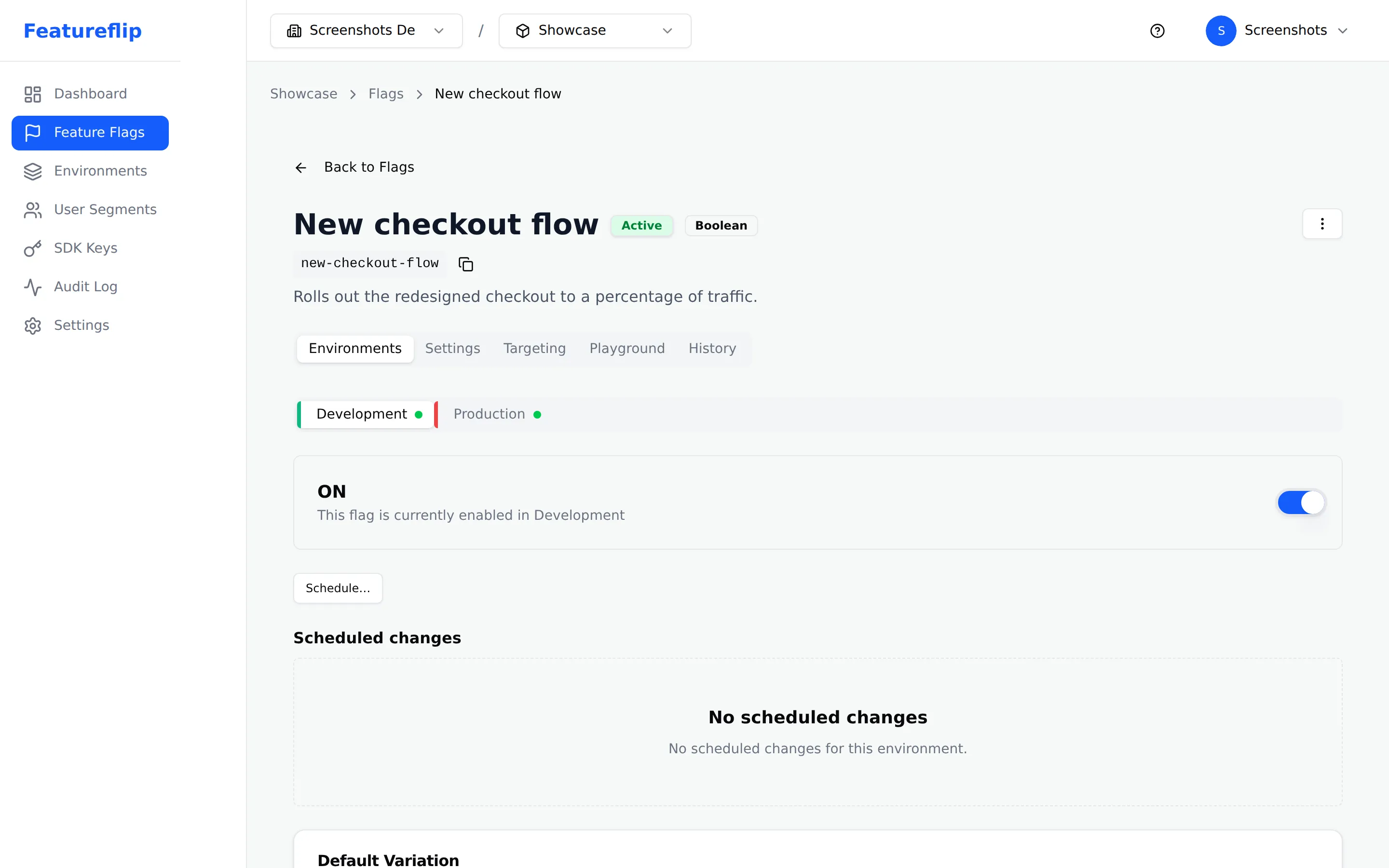
Every environment holds its own flag states, targeting rules, rollout percentages, and fallthrough variations. A change in one never touches another, so a flag can be fully on with aggressive rules in Development, ramping to 10 percent in Staging, and switched off in Production, all at once. That isolation is what lets you exercise a feature safely before a single real user reaches it.
A key per environment
Each environment has its own SDK key, and the key you initialize the SDK with decides which environment configuration your app receives at runtime. Use the Development key locally and the Production key in production, with nothing more than an environment variable telling them apart. Keys live outside source control, and you can regenerate one from the dashboard without disturbing the others.
New environments start safe
Add an environment and Featureflip generates a configuration for every existing flag in it, switched off. Spinning up a QA or Canary stage cannot accidentally expose a half-built feature, because nothing is on until you turn it on. The default is always the safe one.
Promote like you promote code
Move a feature forward the way code moves forward: enable and test it in Development, then Staging, then Production, widening the rollout at each step as confidence grows. Promoting the configuration is a dashboard action, not a redeploy, so the same build runs everywhere and only the environment configuration changes.
Every layer is per-environment
The on and off toggle, the targeting rules, and the percentage rollout are all set per flag per environment. Production can sit behind a conservative 5 percent ramp while Staging serves the same flag to your whole team, on one flag with no duplicated setup. Segments are shared across a project, so the audience definitions stay in one place.
Local eval and live updates, per environment
Each SDK holds one environment configuration in memory, chosen by its key, and evaluates locally in sub-milliseconds with no network round trip on the request path. Change that environment in the dashboard and the new configuration streams to the SDKs keyed to it over Server-Sent Events, typically within a second or two, and no other environment is affected.
For the full model, including custom environments and SDK key rotation, see the environments documentation. For the step-by-step version, the guide on managing environments walks through creating one and its SDK key.
Setting up environments, step by step
The same four moves whether you run two stages or six. The SDK key decides the environment; the configuration decides the behavior.
-
1
Map environments to your pipeline
Create an environment for each stage your code moves through. Two cover a staging-and-production setup, which is what the Free plan includes; add QA, Canary, or regional stages on the plans that allow more. Name them what your team already calls them.
-
2
Point each deployment at its key
Give every deployment the SDK key for the environment it runs in, stored in an environment variable or secrets manager. Local development gets the Development key, production gets the Production key. The key is the only thing that changes between them.
-
3
Configure each flag per environment
Set the toggle, targeting rules, and rollout percentage independently in each environment. A flag can be on for your whole team in Development and off in Production until you are ready, with no code path aware of the difference.
-
4
Promote as confidence grows
Enable the flag in the next environment up when the signal is clean, widening the rollout as you go. Each change you make streams to the SDKs on that environment in seconds, so promotion is a dashboard step rather than a release.
Want the click-by-click version in the dashboard? The guide on creating environments and SDK keys walks through it, and the environments concept doc covers the recommended promotion workflow.
What it looks like in your app
Your application initializes the SDK with the key for the environment it is running in. The key decides which configuration the SDK receives, so the evaluation call below is identical in every environment, and only the key differs between deployments:
const client = FeatureflipClient.get({
  // Development key locally, Production key in production, read from an env var
  sdkKey: process.env.FEATUREFLIP_SDK_KEY,
});

// the environment is decided by the key above, not by this call
if (client.boolVariation('new-checkout', { user_id: user.id }, false)) {
  return renderNewCheckout(user);
}
return renderCurrentCheckout(user);
The same call runs in every environment. Because the key selects the configuration, a flag that is on in Development and off in Production takes no branching in your code, and nothing here changes when you promote it forward. Keep keys in environment variables or a secrets manager, and pick your platform from the SDKs Featureflip publishes or the SDK overview.
Environments sit above the rest of the flag
An environment is the container the rest of the flag lives in. Every other capability is scoped to it:
- The toggle is per environment. A flag on in Staging can stay off in Production until you promote it, and promoting is a dashboard change rather than a release.
- Targeting and rollouts are per environment. One flag can run attribute rules for your team in a lower environment and a cautious percentage ramp in production, each set independently.
- Segments are shared across the project. An audience you define once, such as Beta Users, is available to rules in every environment, so the definition stays in one place while the rules that use it stay per environment.
- Every change is auditable. Each environment records who changed what and when, so promoting a flag leaves a trail you can review alongside the rest of its history.
The same model underpins a staged progressive rollout, a beta program you widen environment by environment, and a kill switch you can throw in production alone. For the full reference, see how environments work and the guide to creating them.
Frequently asked questions
- What are feature flag environments?
- Environments are isolated contexts for feature flag configuration. Each one keeps its own flag states, targeting rules, rollout percentages, and SDK key, completely independent from every other environment in the same project. A single flag can be fully enabled in Development, rolled out to 10 percent of users in Staging, and switched off in Production at the same time. You use environments to model the stages of your deployment pipeline, so a feature moves from local development to production the same way your code does, by promotion rather than by rewriting.
- How do I keep development and production flag configurations separate?
- Each environment has its own SDK key, and the key decides which configuration your application receives at runtime. Initialize the SDK with the Development key in local development and the Production key in your production deployment, typically by reading the key from an environment variable so the same build works in both. Because flags are configured independently per environment, a flag can be fully on in Development while it stays off in Production, and nothing in your code has to change when you promote it. Keep SDK keys in environment variables or a secrets manager, and regenerate one from the dashboard if it is ever exposed.
- How do SDK keys map to environments?
- One SDK key belongs to one environment. When your app calls the SDK, the key it was initialized with tells Featureflip which environment configuration to serve, so the key is what routes an evaluation to the right set of flag states and rules. Store each environment key in that deployment's configuration rather than in source control, and if a key leaks you can regenerate it for that one environment without affecting the others.
- Can a flag be on in one environment and off in another?
- Yes. Every flag is configured independently in each environment, including its on and off state, its targeting rules, its rollout percentage, and its fallthrough variation. That independence is the point: you enable a feature in a lower environment to test it, watch how it behaves, and leave it off in Production until you are ready to promote it. None of that requires a code change, because the differences live in the flag configuration, not in your application.
- How do I promote a flag from staging to production?
- Promotion is a configuration change in the dashboard, not a redeploy. Once a flag looks healthy in Staging, set the same state in Production, usually starting with a small percentage rollout and widening it as confidence grows. The build running in production does not change; only the Production environment configuration does, and the update streams to the SDKs keyed to that environment over Server-Sent Events within a second or two. Treating flag promotion like code promotion, moving dev to staging to production in order, keeps the process predictable.
- How many environments can I have, and do they cost extra?
- The number of environments depends on your plan, and Featureflip uses flat pricing, so environments are not billed per seat or per evaluation. The Free plan includes two, which covers a staging and production setup. Paid plans add more, up to unlimited environments on the Business plan, for teams whose pipeline has extra stages such as QA, Canary, or regional deployments. You add environments from the project settings page, and each new one starts with every flag switched off, so there is no risk of unintended exposure.
Ship a feature through your environments
Environments are in every plan, including Free: 10 flags, 2 environments, no credit card. Paid plans use flat pricing with no per-seat fees, and Business includes unlimited environments.
Related
Environments (docs)
How isolation, SDK keys, and custom environments work, with the recommended promotion workflow.
Manage environments (guide)
A step-by-step walkthrough of creating an environment, generating its SDK key, and rotating it.
Targeting (feature)
Attribute rules and reusable segments, set independently in each environment.
Percentage rollouts (feature)
The per-environment ramp that holds production at 5% while staging runs at 100%.